Getting Started Guide
1. Best practices for using the computing resources
Your usage must comply with the rules and policies of Université Laval, particularly those concerning the use of computer resources, data confidentiality and intellectual property.
Accessing resources
Access will be withdrawn at the end of the course.
-
The resources must be used exclusively to carry out class work requiring computational resources.
-
All users are responsible for any activity carried out using their account, including misuse, unauthorized use or use contrary to the rules and policies in force. Only students registered for the class are authorized to use and interact with the computing resources.
-
The administrator team reserves the right to revoke your access at any time in the event of inappropriate use.
Data storage and backup
We do not offer a recovery or backup service.
-
Do not store important data only on the platform.
-
Make frequent backups of your data (e.g.: datasets, scripts, notebooks, etc.) using your own backup tools.
Responsible use of resources
-
Plan ahead and schedule your training sessions over the course of the semester to reduce the risk of queues and delays. We cannot be held responsible for any impact on your work and your success in the class.
-
Limit resources use to the duration you really need. It's better to run several short jobs, rather than a single lengthy one.
-
To ensure efficient use of the computational resources, limit your GPU memory (VRAM) consumption to 8 GB per session or task. This will help optimize resource sharing among users. In most cases, lowering the training batch size is an effective method to decrease VRAM consumption.
-
Close your Jupyter sessions when you're done working with them. We reserve the right to close any session that has been inactive (no code execution) for more than two hours.
2. Help & support resources
If you have any questions or problems relating to the course content or the instructions of the assignments, please write to the person teaching the class.
If your questions or problems are of a technical nature and relate to the use of the computational resources, please write to sse.aide@ulaval.ca.
Alternatively, we invite you to try the following solutions, which may help you get going quicker:
-
Take the time to read the error message carefully. It may contain relevant information.
-
Read this Getting Started Guide again, including section 6 “Frequently Asked Questions”, to see if your question has already been answered.
-
Consult the online documentation of the Digital Research Alliance of Canada. These computational resources operate in a similar way (e.g.: JupyterLab and Slurm), so you'll find a lot of applicable information there.
-
Do a Google search for the problem you're experiencing (e.g.: code or error message), or for your specific question. The tools available on the platform are very well known, and many online resources and support communities exist (e.g.: Jupyter Discourse).
If you have any comments or suggestions, please write to us at sse.aide@ulaval.ca.
3. Logging in to the platform
An account is required to use the computational resources. Since you have access to the platform as part of a class, accounts have automatically been created for you at the beginning of the semester. To log in, visit https://jupyter.ice.ulaval.ca and log in using your IDUL, your ULaval password, and multi-factor authentication (see image 1).
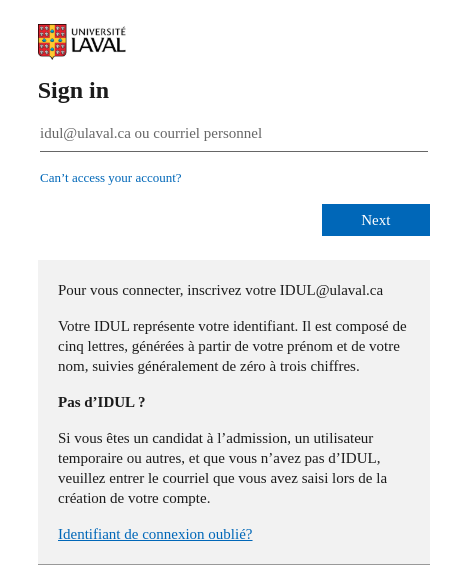
Image 1. Logging in to the platform
There are different ways to use the computational platform.
-
Using a Jupyter session (section 4).
-
Using a Slurm session (“batch” mode) (section 5).
Front-end node
A front-end node (also known as a login node) in a cluster is the entry point where users log in, submit jobs and manage data before the compute nodes handle the actual processing. It is similar to the reception desk that organizes and directs your work to the right place.
Step 1. Connecting to the Université Laval VPN
VPN
This step is required when you are connected to an Internet network outside the ULaval campus, and accessing the platform via SSH. JupyterHub is accessible without VPN
If you are not connected to the ULaval campus network (eduroam) and are physically off campus, you must first ensure that you are connected to the Université Laval VPN (vpncampus.ulaval.ca).
To connect to the VPN, you'll need to install Cisco AnyConnect Secure Mobility Client on your device. To do this, please refer to the guide specific to your device type:
- AnyConnect Guide for Windows (PDF)
- AnyConnect guide for macOS (PDF)
- AnyConnect for Windows help vignette/capsule
Once installed, launch the Cisco AnyConnect Secure Mobility Client software and enter vpncampus.ulaval.ca, then click on “Login”. Then enter your address in the IDUL@ulaval.ca format along with your usual password and confirm your multi-factor authentication if necessary.
Step 2. SSH connection to the platform
Various SSH clients are available for different operating systems. Here are two suggestions, available by default on Windows and Mac:
- Windows: https://learn.microsoft.com/en-ca/windows/terminal/tutorials/ssh
- Mac: https://support.apple.com/en-ca/guide/terminal/welcome/mac
- Linux: OpenSSH provides a SSH client
SSH client
A SSH client is a program that lets you establish secure connections with remote computers and servers using the SSH (Secure Shell) protocol.
SSH connection:
-
URL: login.ice.ulaval.ca
-
User name: your IDUL (in lower case, without '@ulaval.ca')
-
Password: same password/PIN as for other Université Laval applications
In your terminal, the command will look like this (don't forget to replace “idul” in the command with your own IDUL):
ssh idul@login.ice.ulaval.ca
If you are logging in for the first time, the following message may appear:
ssh idul@login.ice.ulaval.ca
The authenticity of host 'login.ice.ulaval.ca (132.203.223.10)' can't be established.
ED25519 key fingerprint is SHA256:UDED7Y6748tClCNOBId014dGUn0Jt1QEXt0swKD6lp0.
Are you sure you want to continue connecting (yes/no/[fingerprint])?
Type 'yes', then press “enter”. You'll then get the following message when you log in for the first time:
Warning: Permanently added 'login.ice.ulaval.ca,132.203.223.10' (ED25519) to the list of known hosts.
Finally, you will be asked to enter your password.
$ ssh <idul>@login.ice.ulaval.ca
|
| Tout usage non autorisé ou illicite des ressources informatiques
| ou de télécommunications de l'Université Laval est défendu.
| Chaque usager de ces ressources doit se conformer aux règlements et aux politiques
| de l'Université ainsi qu'à la Loi, notamment en ce qui a trait à l'obligation de
| respecter les droits d'auteur, les droits des autres utilisateurs sur les réseaux
| et l'intégrité des systèmes.
|
| Il est strictement interdit d'accéder ou de tenter d'accéder à une ressource
| pour laquelle vous ne possédez aucun droit d'accès.
| --
| Unauthorized or illicit use of any computing or telecommunication resources is prohibited.
| Each user of these resources must comply to Laval University internal directives
| and policies and to, among other, the respect of copyrights, the respect of the rights of
| other user on networks and the respect of the integrity of computer based information resources.
|
| It is strictly prohibited to access or to try to access a resource without being authorized.
|
| https://www.ulaval.ca/fileadmin/Secretaire_general/Politiques/Politique_securite_de_l_information_19_mars_2013.pdf
| https://www.ulaval.ca/fileadmin/Secretaire_general/Reglements/reglement_utilisation_actifs_informationnels.pdf
|
<idul>@login.ice.ulaval.ca's password:
Don't be surprised, no characters will appear when you enter your password. Simply type in your password and press “enter” when you're finished.
Once you have entered your password, you will be connected to one of the front-end nodes:
<idul>@login.ice.ulaval.ca's password:
################################################################################

                                   Bienvenue

                  Infrastructure de calcul pour l'enseignement

################################################################################

Last login: Thu Dec 12 08:29:07 2024 from 132.203.87.144

Lmod is automatically replacing "intel/2020.1.217" with "gcc/9.3.0".

[<idul>@ulaval.ca@ul-ice-pr-ssh01 ~]$
Here, the login prompt shows “ul-ice-pr-ssh01”, but “ul-ice-pr-ssh02” is just as valid. Redirection to the servers is random. By default, you'll find yourself in your “HOME” folder. To view the contents of this folder, type the following command:
ls
Step 3. Loading the custom module of the course
A module has been created specifically for your course. When logged in to the platform, the module can be loaded with the following command:
module load enseignement/<id-of-your-course>
In Jupyter, the same module can also be loaded, through the "Softwares" tab on the left of the page:
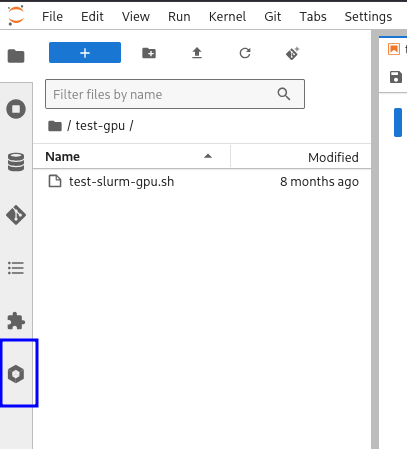
Image 2. Jupyter lab 'Softwares' tab
You can then search for the name of the module and click "Load" next to it (the load button will appear when the cursor is over the module name):
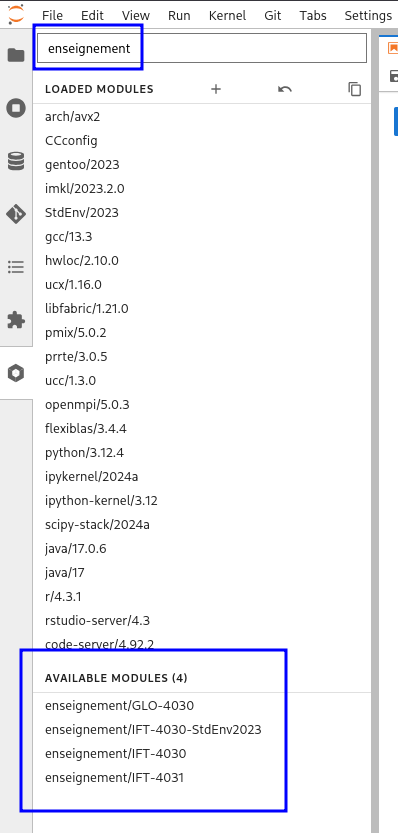
Image 3. Modules 'enseignement' available in JupyterLab
Note that the module must be loaded before creating/opening a notebook.
Your environment is now ready. You can start using the GPU computational resources either with Jupyter (section 4) or with Slurm in “batch” mode (section 5).
Step 4. Data storage and transfer to the platform
Please note that for class purposes, each user has access to 50 GB of storage. This storage is accessible both via a Jupyter session (section 4) and via a SSH connection to the front-end node, as you have done previously.
Once you have accessed your storage space, you will find several locations/folders, but the main ones to be aware of are:
-
HOME: Your personal space, accessible only by you. By default, you're in this folder when you open a Jupyter session or log in to the front node via SSH.
-
PROJECT: Your shared space, accessible as a folder in your home folder, which can be accessed by your team members. It's important to place your files in the subfolder associated with your team, which bears the course ID and your team's number.
There is also a "/public" directory, available to everyone, used to distribute common elements, such as code or datasets.
Backups
We would like to remind you that we do not offer a recovery or backup service, and that it is your responsibility to save your data (e.g.: datasets, scripts, notebooks, etc.) using your own backup tools.
Data transfer from your local computer
Depending on the speed of your Internet connection, uploading large files (e.g.: multi-GB datasets) from your local computer may take some time. We recommend that, whenever possible, you carry out these data transfers from the Université Laval campus with a wired connection rather than a wireless one, so as to obtain the best performance.
You can upload files from your local computer to your personal storage space via a Jupyter session. To do this, navigate to the location where you wish to upload the file, then click on the “Upload” (upward facing arrow) icon in the left-hand menu (see image 4). Alternatively, you can “drag & drop” them from your workstation to the left-hand menu in Jupyter.
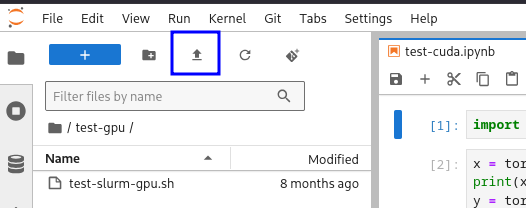
Image 4. Uploading a file to your storage space
You can also download data from your storage to your local computer using a Jupyter session. To do this, right-click on the file of your choice in the left-hand navigation menu and select “Download” (see image 5) or drag & drop it.
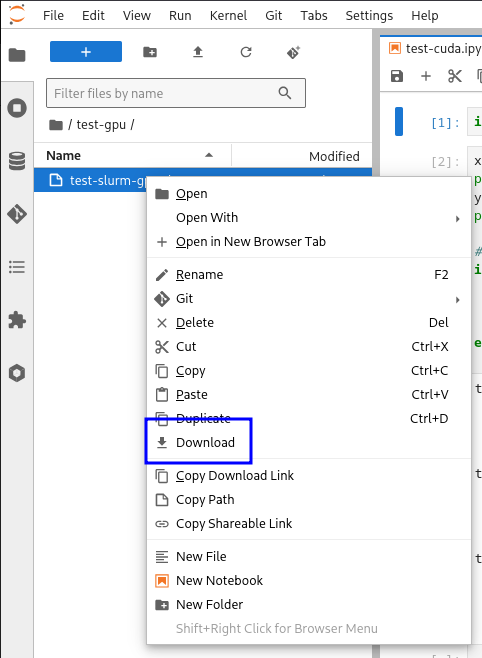
Image 5. Downloading a file to your local computer
Using data already available in the shared storage space (/public) of your class
Whenever possible, it's best to use datasets already available on the platform. If your professor has requested it, some datasets specific to your course may already have been deposited in the shared folder /public/enseignement/<your-course-id>/datasets/. You can load the datasets directly from this location into your scripts.
Downloading publicly available data from the Internet directly to the platform
If the datasets you wish to use are publicly available on the Internet, it is preferable to download them directly to the platform, rather than transferring them locally to your computer and then uploading them to your storage space. To download a dataset available on the Internet directly to the platform, you can use wget, which is already installed on the platform. The simplest use of the command is to first navigate to the directory where you want your dataset:
cd path/to/directory

wget <url-of-your-dataset>
After the download has completed, your dataset will be in the directory you selected with the first command.
Step 5. Using models and datasets from Hugging Face
The Hugging Face platform is available through the platform to download both models and datasets.
To install the command-line client:
module load StdEnv/2023
module load python/3.12.4
python -m venv venv
source venv/bin/activate
pip install --upgrade pip
pip install "huggingface_hub[cli]"
In the Web interface of Hugging Face, you need to create an access token, with at least a 'read' access. After the creation of the token, you can authenticate with the command-line client on the platform:
huggingface-cli login
When logging in with the client, you will be asked a few questions to complete the process.
Here are two examples to download a dataset (MNIST) and a pre-trained model (vit-base-mnist):
huggingface-cli download ylecun/mnist --repo-type dataset --local-dir ylecun-mnist
huggingface-cli download farleyknight-org-username/vit-base-mnist --local-dir sample-mnist-model
Step 6. Creating and loading a custom Jupyter kernel
If the module prepared for your course, enseignement/<id-of-your-course>, does not meet your project requirements, it is possible to create your own Jupyter kernel. The creation process is possible only from a terminal, not a notebook.
You need to create a Python virtual environment and 'install' it using 'ipykernel':
module load python/3.13.2
python -m venv venv
source venv/bin/activate
pip install --upgrade pip ipykernel
pip install torch torchvision
python -m ipykernel install --name kernel-custom --user
In this example, both torch and torchvision are installed. You can install any other packages that you need at this step. Also, the example creates kernel-custom, but you can give it any name you choose.
After these commands, the kernel you created is available in JupyterLab, with the name you chose in the previous step.
4. Using GPU or CPU computation with Jupyter
Jupyter is primarily intended for small tasks to prepare, debug and refine your training scripts. Sessions are limited to 24 hours.
Step 1. Launching a JupyterLab session
To use GPU or CPU computation with Jupyter, the first step is to launch a JupyterLab session directly by typing the address https://jupyter.ice.ulaval.ca/ in your browser.
JupyterHub lets you launch your JupyterLab session on a compute server. Here you can reserve the resources you need and select the version of Python you want to use. By default, the most recent version is selected.
When you launch a Jupyter session, you can select several parameters in the “Server options” window (see image 6):
-
Number of cores: We recommend that you start with 4 cores and increase as needed.
-
Memory (MB): We recommend that you start with 8 to 16 GB (8192 to 16,384 MB) and increase as necessary.
-
GPU configuration: Select 1 x ENSEIGNEMENT_GPU to launch a session with a GPU resource, if needed. You can also launch a session without a GPU by selecting NONE.
-
Account: By default, the account should begin with “ens” and contain your course id. If this is not the case, choose the “ens” option from the drop-down menu.
-
Time (hours): Select the desired Jupyter session duration. Permitted duration ranges from 1 to 24 hours in 1-hour increments.
-
User interface: Select the latest version of Python.
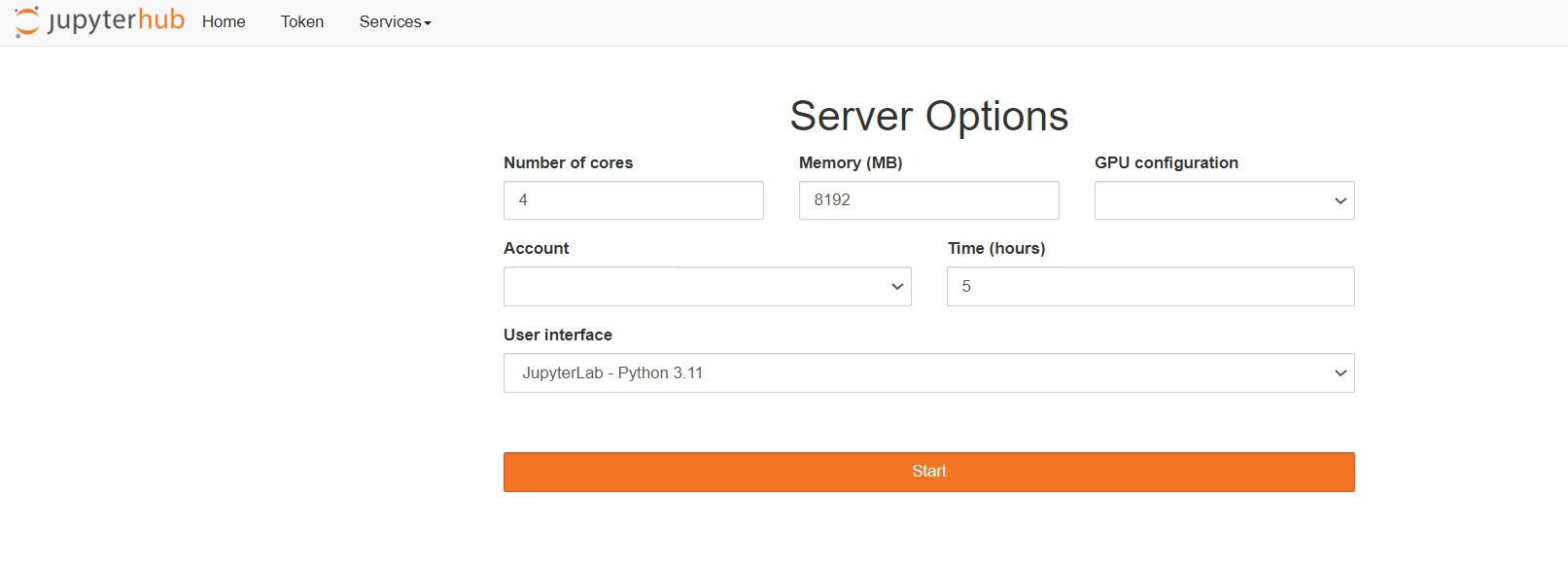
Image 6. Server Options page
Once all these options have been configured, click on the “Start” button to launch your Jupyter session. A loading time of up to 2 or 3 minutes is normal; in the background, an allocation request is made to the Slurm scheduler (see image 7).

Image 7. Session loading page
JupyterLab is the recommended general-purpose user interface (image 8). Your remote files and directories can be managed directly from Jupyter, and you can launch applications such as a terminal, notebooks, RStudio and more. You'll also see your new virtual environment, which you created in section 3 of this guide. Once the notebook has been launched, you can change the kernel using the “Kernel” option and then “Change Kernel”.
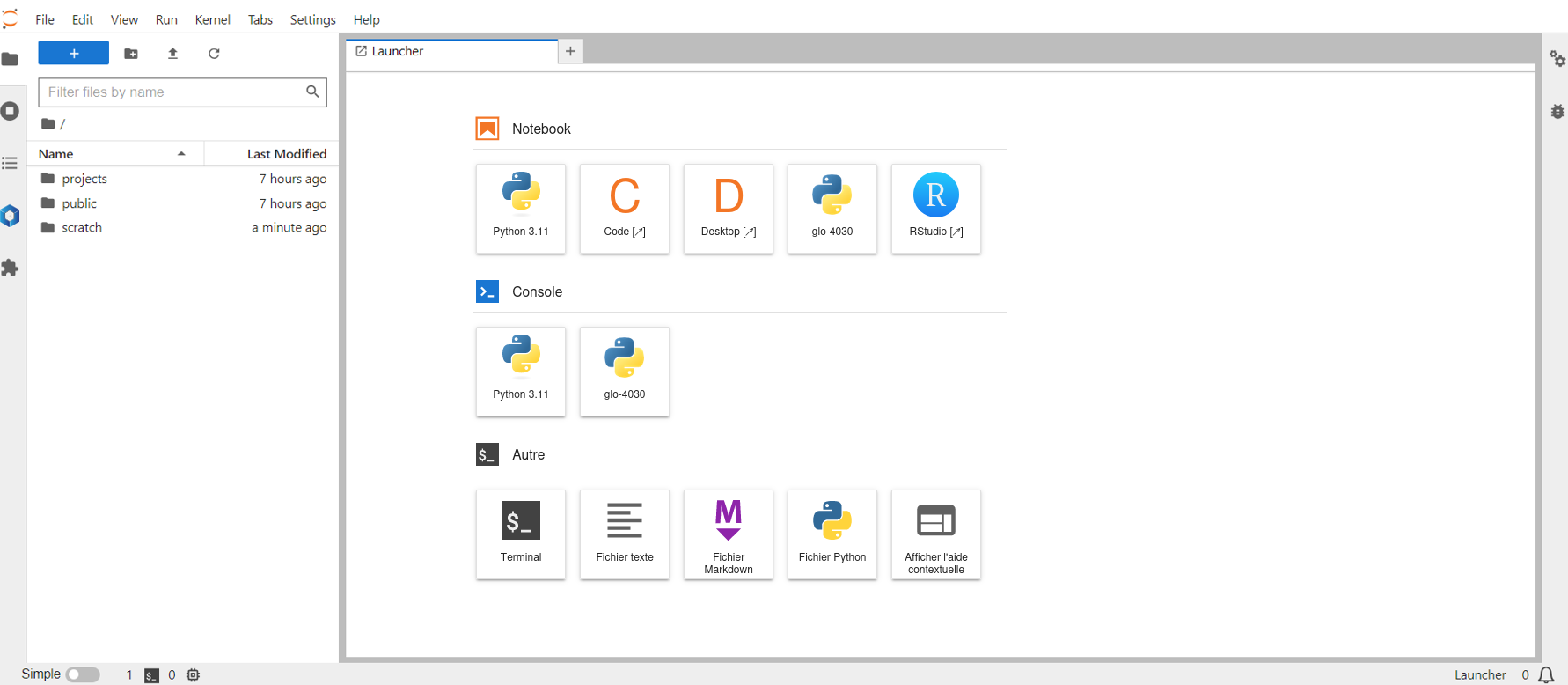
Image 8. “Hub“ of the Jupyter session
Step 2. Creating a notebook (if required)
Jupyter notebooks are frequently used for interactive analysis in Python. These are electronic notebooks which, in the same document, can bring together text, images, mathematical formulas and executable computer code.
If you wish to create a new notebook, simply click on the icon with the desired Python version, and it will automatically be added to the current folder.
Notebooks are made up of cells that generally contain code or content formatted in Markdown, a lightweight markup language.
You can also launch an interactive Python console by clicking on the icon under “Console” in the Launcher menu in your JupyterLab session.
Additional resources for JupyterLab
If you need to quickly find help on a particular library, you can use the Help menu in Jupyter to access documentation relating to the main libraries available.
For more information, you may also find the following references useful:
- Digital Research Alliance of Canada - Using modules
- Digital Research Alliance of Canada - Python
- Digital Research Alliance of Canada - JupyterLab
5. GPU or CPU computation with Slurm ("batch" mode)
For compute-intensive jobs, once your training scripts are ready, it is usually best to run them in Slurm in “batch” mode. Slurm's default “batch_gpu”/“batch_cpu” partitions are limited to 48 hours.
If your project requires a GPU, use batch_gpu. There is also one if you do not require a GPU: batch_cpu.
Step 1. Preparing your submission script
To launch jobs with Slurm, you first need to use submission scripts to properly setup the jobs.
In your submission script, you must limit yourself to 1 GPU, otherwise your job won't start. You must also use shards. The number of shards refers to the GPU capacity requested. Possible values range from 1 to 4 shards. However, we ask you to limit the number of shards you request to your actual needs, so that other users can make fair use of the compute resources. We suggest you start with two shards, then gradually increase as needed.
Example of a Slurm submission script would look like this (script.sh):
#!/bin/bash
#
#SBATCH --time=0-01:00:00
#SBATCH --cpus-per-task=2
#SBATCH --mem=4G
#SBATCH --partition=batch_gpu
#SBATCH --gres=shard:2

module load enseignement/<id-of-your-course>

# Activate your virtual environnement, if necessary
source venv/bin/activate

# Insert your computations here...
python script.py
Step 2. Submitting your script to Slurm
Once your submission script is ready, you can submit your job to a login node using the “sbatch” command:
sbatch script.sh
All possible Slurm script parameters are available here: https://slurm.schedmd.com/sbatch.html
You can then display running jobs using
sq
Additional resources for Slurm
For more information, you may also find the following references useful:
6. Frequently asked questions
I'm experiencing a bug when using Jupyter or Slurm. What should I do?
Please refer to section 2 of this guide.
I can't connect to the platform using SSH and I get an error message. What's wrong?
If you get the following error message:
ssh: connect to host login.ice.ulaval.ca port 22: Connection timed out
This is probably because you are connected to an off-campus Internet network but have not connected to the ULaval VPN. Make sure you connect to the VPN before trying to connect to the platform via SSH (see “Step 1. Connecting to the Université Laval VPN” in section 3 of this guide).
My script works when I run it in Jupyter, but not in Slurm. How come?
In this case, the main cause of the problem is usually due to the presence of libraries in Jupyter only. Make sure you create a virtual environment on the computing platform (see “Step 2. SSH connection to the platform” in section 3 of this guide) and activate it (‘source venv/bin/activate’ in the example for creating a virtual environment).
I'm having trouble installing a module or library when creating my virtual environment. What should I do?
Refer to section 3 of this guide (“Step 3. Loading the custom module of the course”). If you still have problems, check section 2 of this guide. If necessary, please write to sse.aide@ulaval.ca.
The 50 GB storage space is insufficient for my needs. What should I do?
If your default 50 GB storage space is insufficient for your needs, it is possible to increase it. Write to us at sse.aide@ulaval.ca to request more storage space.
How can I close my Jupyter session if I'm no longer using it?
To close your Jupyter session, click on “File” in the top left-hand corner, then on “Hub Control Panel” (see image 9). Then click on the “Stop My Server” button (see image 10). Your Jupyter session will then be stopped.
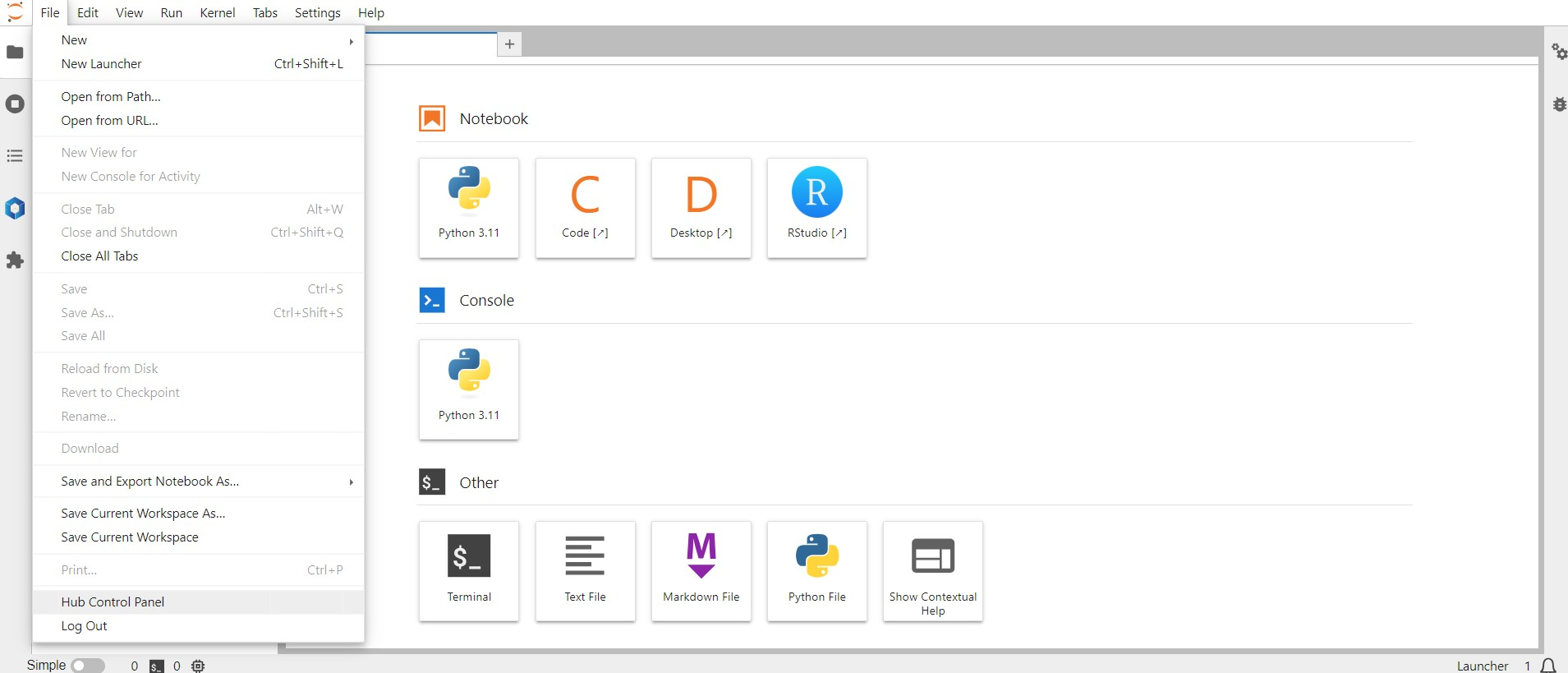
Image 9. Hub Control Panel access

Image 10. Logging out of the Jupyter session
How can I cancel a job with Slurm if I've made a mistake?
First enter the “sq” command to find your job number.
Once you've identified the job ID, you can enter the command “scancel” followed by the number (JobID) corresponding to your job to cancel the desired job.
I get a “Timeout” error when I launch a Jupyter session. What should I do?
If you get the “Timeout” error (see image 11), this indicates a lack of computational resources. Please try again later. If the error persists, please write to sse.aide@ulaval.ca.

Image 11. "Timeout" error
Can I exceed the duration of my Jupyter interactive session?
No, you cannot exceed the duration of a Jupyter session. The length of the session set during initial configuration cannot be changed while you're working. At the end of the session, the progress of your work will be saved, and you'll be able to start a new one. If you start a task whose duration exceeds the time remaining in your Jupyter session, it will be interrupted when the Jupyter session expires. You'll have to start a new session.
I can't find my Jupyter session. Where is it?
If you can no longer access your Jupyter session, this means that it has probably expired. Please launch a new one.
How can I save my work/files/etc.?
Your work on Jupyter is saved continuously in real time. Output sections are also saved. You can also choose to save manually by clicking on “File” and then on “Save Notebook” in your Jupyter session.
What happens if I exceed the CPU (cores)/memory (RAM)/GPU ratio available for my session?
In the case of a CPU or GPU limit, this should have no implications if the resources are available on the platform. In the case of memory (RAM), your job will be interrupted.
How can I check resource use while I'm doing my computational jobs or training?
Several Linux commands let you check resource usage during your training sessions.
- nvidia-smi: This command lets you view active GPUs and their attached processes. You must be connected to the compute node running your job.
- top or htop: These two commands allow you to view the active processes on a server. Notes: these commands display all processes running on a server, not just your own. Here too, you need to be connected to the compute node running your job (not the login node).
- sq: This command displays your jobs in the Slurm scheduler.
- squeue: This command displays all jobs in the Slurm scheduler.
For more commands available with Slurm, see this page
To monitor a job in progress: https://docs.alliancecan.ca/wiki/Running_jobs
I'd like to use the GPU or CPU compute resources and the various tools and resources beyond this class. Is this possible?
We invite you to contact us at sse.aide@ulaval.ca to express your interest. Although we cannot guarantee immediate access, your input will help us assess the request.